Safety note: Turn off and unplug the printer before reaching into internal paper paths. Allow laser printers to cool. Do not use sharp tools or force covers and components.
Step-by-step checks
- Confirm the printer is powered on and shows no hardware error.
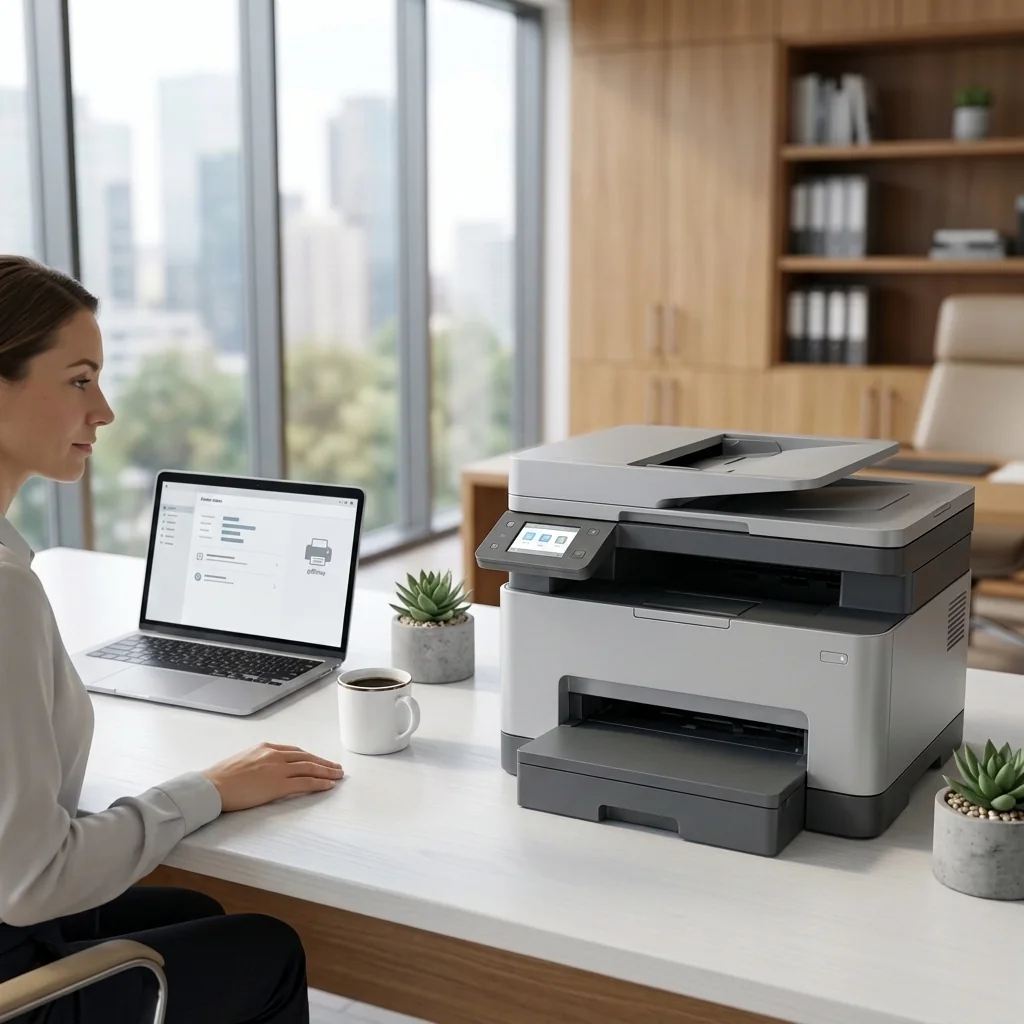
- Verify the computer and printer are connected to the same Wi-Fi network.
- Restart the printer, computer, and router.
- Open the print queue and cancel stuck jobs.
- Set the correct device as the default printer.
- In Windows, open Services and restart Print Spooler.
- Remove the printer and add it again from system settings.
- Print a network report and check that the printer has a valid IP address.
Check the result
After each major change, print a small test page or retry the original task. Stop repeating cleaning cycles or resets when the result does not improve.
When to stop troubleshooting
Disconnect power and contact a qualified repair professional if the printer sparks, smells burnt, overheats, has liquid damage, a damaged power cable, grinding mechanical noise, or requires major disassembly.
Frequently asked questions
The guide focuses on ordinary user-accessible checks. Follow the printer manual, avoid forcing parts, and stop when a step requires internal repair.
No. Do not permanently disable firewall or security protection. Allow only trusted manufacturer applications when needed.
No. STS STAR is an independent educational resource and is not affiliated with printer manufacturers.